Compare PDF

Compare PDF

Find every difference between two PDFs — word-by-word text changes or visual side-by-side, with an exportable report.

Word-by-word text diff
Visual page comparison
Exportable PDF report
Fast & free

Tap to add the 2 PDFs to compare

First file = Original · Second file = Modified

How to compare two PDFs

1
Add the two PDFs you want to compare - the first is the Original, the second the Modified version. Upload from your device or pull them from Google Drive, Dropbox, or OneDrive. A Swap button flips them if the order is wrong.
2
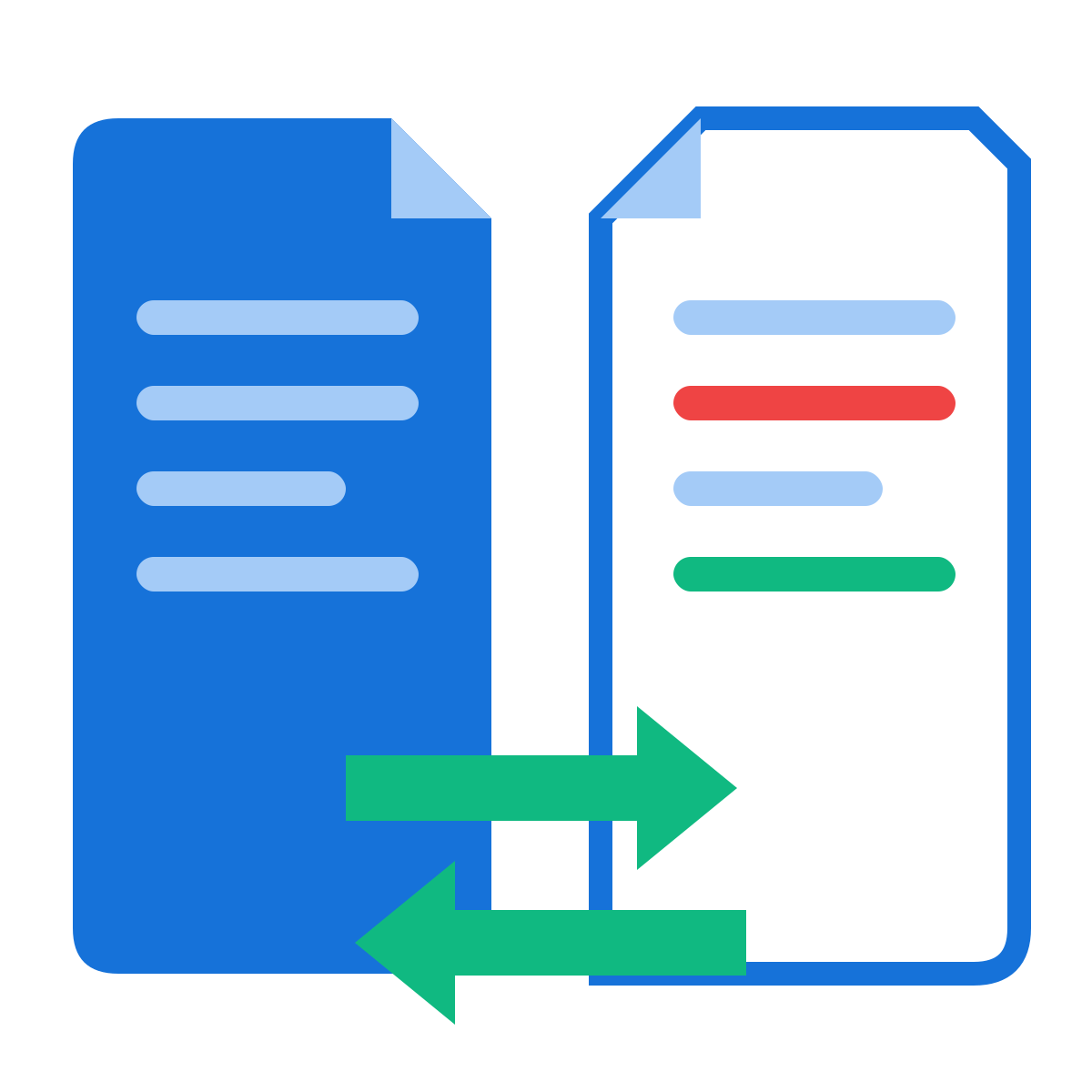
Pick a mode: Text compare finds word-by-word edits and shows both versions side by side with deletions in red and additions in green. Visual compare renders each page of both files and boxes every changed region in red - it catches images, stamps, layout shifts, and anything text extraction would miss.
3
Hit Compare PDFs. The summary tells you how many pages differ, and clickable page chips jump straight to each change. Added or removed pages are flagged too.
4
Optionally generate a PDF comparison report - a dated summary of every change (text snippets or highlighted page images) you can download, save to the cloud, share by link, or send into another tool.

Why use our Compare PDF tool

Two comparison modes
Text mode diffs the actual words; Visual mode diffs the rendered pixels. Use text for contracts and essays, visual for forms, scans, stamps, and layout changes.
Word-by-word precision
The text engine aligns both versions word by word, so a single edited number in a 50-page contract shows up as exactly that - not a wall of false differences.
Side-by-side view
Each changed page shows Original and Modified next to each other: deletions struck through in red, additions highlighted in green.
Visual difference highlighting
Visual mode overlays red boxes on every changed region and reports what percentage of the page differs - antialiasing noise is filtered out.
Added & removed pages
Pages that exist in only one document are flagged clearly, so you catch inserted or deleted pages, not just edited ones.
Jump to changes
The summary bar lists every changed page as a clickable chip - one click scrolls you straight to that difference.
Exportable PDF report
Generate a dated comparison report - text change snippets or highlighted page images - to file, share, or attach to a review.
100% in your browser
Both documents are compared locally - nothing is uploaded, which matters when you're comparing confidential drafts.
Big documents welcome
Files up to 80 MB each and up to 300 pages compared, with lazy rendering so even long documents stay smooth.
Free, no watermark
No signup, no watermark on the report, no per-day cap on comparisons.

Frequently asked questions

How do I compare two PDF files?
Add both files (the first is treated as the Original, the second as the Modified version), pick Text or Visual mode, and hit Compare PDFs. Differences appear side by side, with a summary of how many pages changed and chips that jump to each one.
What is the difference between Text and Visual mode?
Text mode extracts the words from each page and aligns them word by word - perfect for contracts, essays, and reports where you care about edits. Visual mode renders both pages as images and highlights every changed region in red - it catches things text can't see: images, signatures, stamps, tables, fonts, and layout shifts. You can switch modes after comparing.
Can it detect added or removed pages?
Yes. If one document has more pages than the other, the extra pages are flagged as "only in Original" or "only in Modified" in both modes.
Does it work on scanned PDFs?
Visual mode does - it compares the rendered pixels, so scans work fine. Text mode needs real text; for scanned documents, run them through our OCR PDF tool first if you want a word-level comparison.
What is in the comparison report?
A dated cover page (file names, page counts, mode, result), then the detail: in Text mode, every changed page with removed/added text snippets; in Visual mode, an image of each changed page with the differences boxed in red. It's a normal PDF you can download, share, or archive.
Are my files uploaded to your servers?
No. The whole comparison - text extraction, diffing, page rendering, and report building - runs inside your browser. Neither document ever leaves your device.
Is there a size or page limit?
Each file can be up to 80 MB. Comparison covers up to 300 pages; longer documents are compared up to that point and the summary tells you so.
Can I compare password-protected PDFs?
Yes - if a file is password protected you'll be prompted for its password, the protection is removed for the comparison, and the documents are then compared normally.
Can I swap which file is the original?
Yes. Use the Swap button between the two file slots - the comparison direction (what counts as added vs removed) flips accordingly.
Does it work on mobile?
Yes. The tool runs in any modern browser on phone, tablet, or desktop; the side-by-side panes stack vertically on small screens.

Use our other tools

EditlyEditlyMerge PDFMerge PDFSplit PDFSplit PDFCompress PDFCompress PDFSign PDFSign PDFScan PDFScan PDFTranslate PDFTranslate PDFPassport PhotoPassport PhotoQR Code GeneratorQR Code GeneratorWeb Page to PDFWeb Page to PDFPDF to WordPDF to WordWord to PDFWord to PDFPDF to JPGPDF to JPGJPG to PDFJPG to PDFPDF to PPTPDF to PPTPPT to PDFPPT to PDFPDF to ExcelPDF to ExcelExcel to PDFExcel to PDFHTML to PDFHTML to PDFProtect PDFProtect PDFUnlock PDFUnlock PDFCrop PDFCrop PDFDelete PagesDelete PagesOrganize PDFOrganize PDFRedact PDFRedact PDFRotate PDFRotate PDFWatermark PDFWatermark PDFOCR PDFOCR PDFPage NumbersPage NumbersDestroy PDFDestroy PDFBates NumberingBates NumberingCompress ImageCompress ImageConvert to JPGConvert to JPGRemove BackgroundRemove BackgroundWatermark ImageWatermark ImageChat with PDFChat with PDFAI CV OptimizerAI CV Optimizer